
Google retired Google Ads developer tokens on 9 September 2026. Your API access now comes from your Google Cloud project, at one of four levels. That's the project where you create the login Claude or ChatGPT uses to connect. On 31 August, Google also posted a proxy rule. Agencies have to connect through their own project, and hosted services that only pass Google Ads through to others are banned.
I've managed €5M+ of ad spend over 10+ years. For an agency that wants Claude or ChatGPT on its accounts, this is the order I use. First its own project, then Explorer, then brand verification. Basic comes later, when its busiest day needs it. Here's what changed, which level you need, how to get it step by step, and what the rule means for your tools.
In short:
- Developer tokens are gone. Your access level now comes from your Google Cloud project, and that's where you apply for it.
- Explorer gets you onto real accounts, with 2,880 operations a day for the whole project. When that's not enough, Basic gives you 15,000 once your brand is verified.
- Google says the proxy rule doesn't restrict your own automation, or open-source tools you run with your own login.
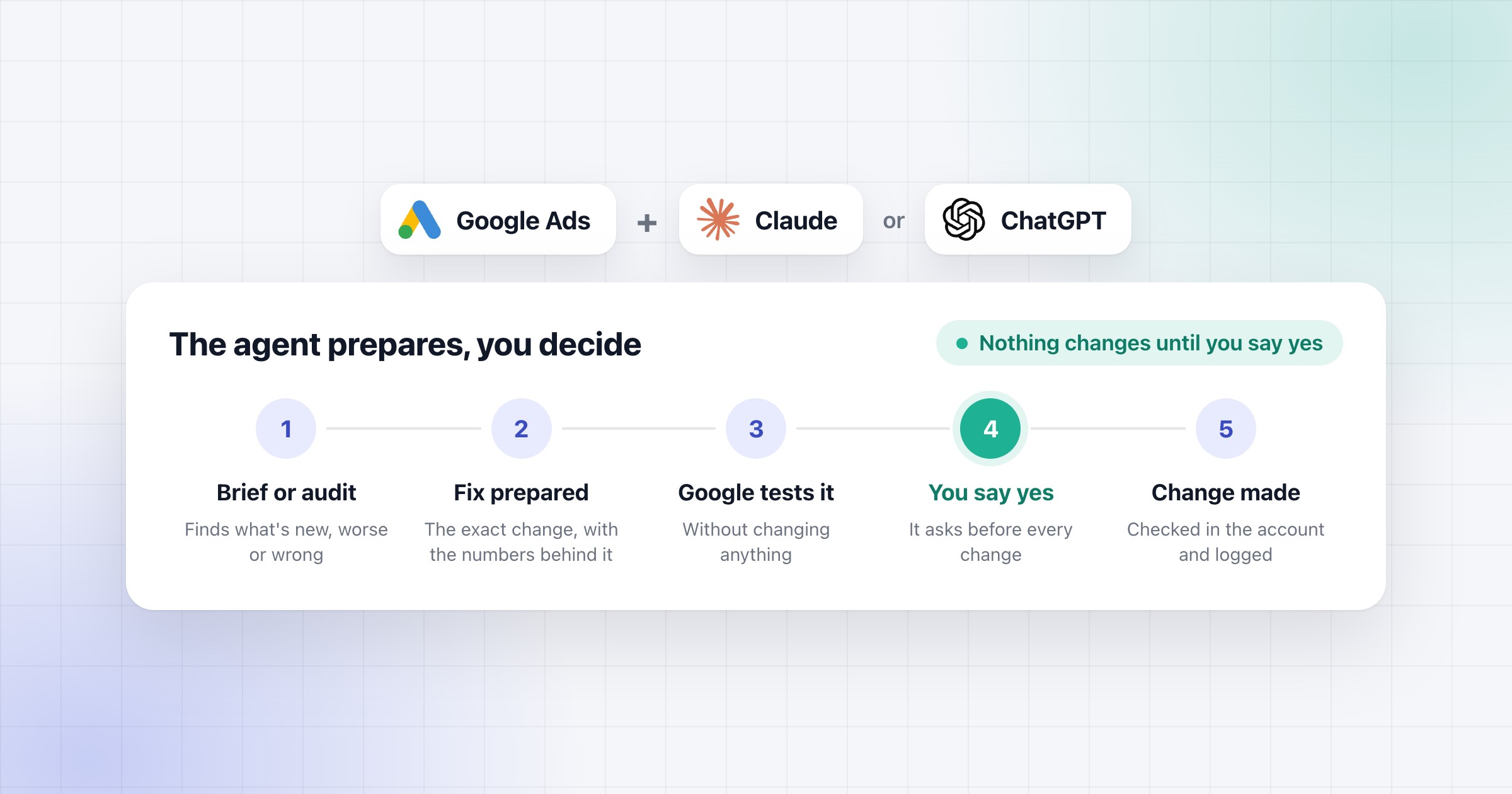
- In our setup, Claude reads through Google's read-only server, and it doesn't change anything until you say yes.
What changed on 9 September 2026
Your access level now comes from your Google Cloud project. That's also where you apply for it, on the Google Ads API page in Google Cloud. Google won't process an application you start in the old API Center of your manager account.
- Setups that were working kept working. If a project made calls with an approved token in the 90 days before 9 September, it kept that token's level. Any other project starts at Test, which only reaches test accounts. For example, if your old token's last call was in May, you start at Test and apply again.
- A token is ignored. You can still send one, and the API just ignores it. Google says it will reject tokens in a future version, with no date yet.
- You don't need a manager account, unless you want to reach several accounts through the API.
So if a guide or a video sends you to the API Center, it's out of date.
Which access level you need
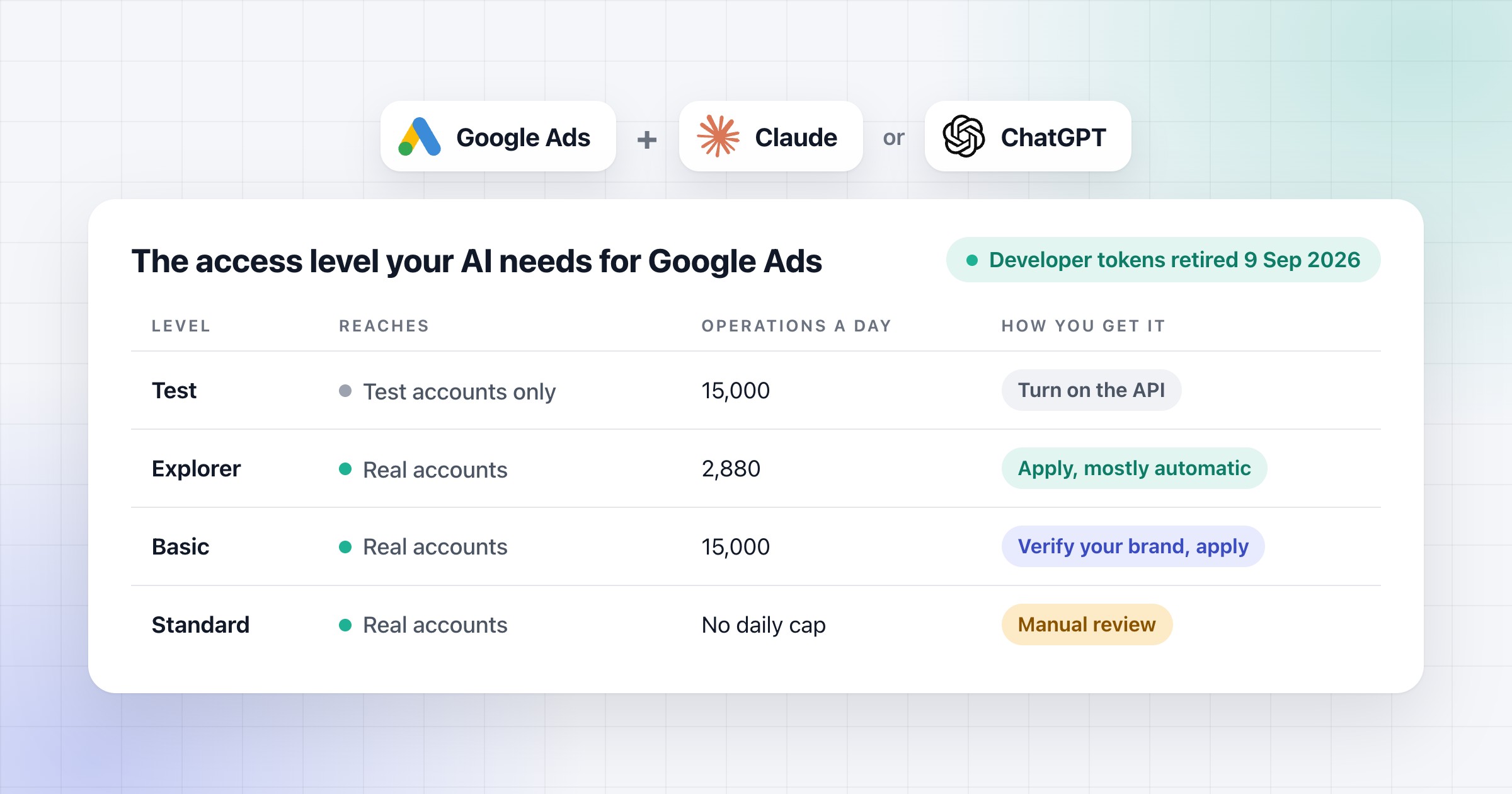
For client work you need Explorer at least. Test only reaches test accounts. There are four levels.
| Level | Reaches | Operations a day | How you get it |
|---|---|---|---|
| Test | Test accounts only | 15,000 | Comes when you turn on the API |
| Explorer | Real and test accounts | 2,880 on real accounts | You apply, and most are approved automatically |
| Basic | Real and test accounts | 15,000 | You verify your brand, then apply. It's reviewed in minutes |
| Standard | Real and test accounts | No daily cap | You apply, and it's a manual review of about 10 business days |
Counting operations is simple. One report or query is 1, however many rows it returns, and each thing you change is 1. For example, if you add 30 negative keywords, that's 30. The cap is for all the project's accounts together, over a rolling 24 hours, so I count the busiest day.
Explorer can't create accounts, manage users, handle billing or use planning tools like Keyword Planner. Other than that, it has the same campaign management and reporting as the levels above. So Google's advice from February is to stay on it as long as it does what you need.
Here's a sample agency with 35 client accounts, on its busiest day. The numbers are an example.
| Monday's work | Operations |
|---|---|
| The morning brief, 12 queries for each account | 420 |
| The weekly report, 40 queries for each account | 1,400 |
| The team's questions, 50 at 6 queries each | 300 |
| The changes, 30 negative keywords and 8 budgets | 38 |
| Google's test of the same changes, before they go in | 38 |
| All of Monday | 2,196 |
That leaves 684 of Explorer's 2,880. I count Google's test before each change too, because Google doesn't say if it counts. Each new account adds 52, so the 49th account takes Monday over the cap. That's when I'd apply for Basic, or sooner if the team needs keyword ideas.
How to get Explorer access, step by step
You can do most of it yourself, and Explorer usually comes through automatically. Sign in to the Google Cloud console with a Google account the agency owns, because whoever owns the project owns the access. For example, if a freelancer sets it up in their own account, they own the project your access comes from.
-
Create the project. Open the Manage resources page in the console and click Create project. Give it a name you'll recognise, like "Agency Google Ads", and check the project ID before you click Create, because you can't change it later. Under Parent resource, pick your organization or folder, or No organization if it's offered. Then click Create. You don't need billing for the API. Don't start the Google Cloud free trial for this project either, because Google can reject a project on the free trial when it applies for Basic.
-
Turn on the Google Ads API. In the new project, go to APIs & Services and click Enable APIs and services. Search for Google Ads API, open it and click Enable. That gives you Test access.
-
Apply for Explorer. Open the Google Ads API Overview page and check that it says Test. Expand Upgrade access level, check that the next level is Explorer, and click Apply for access. Most projects get it automatically.
-
Create the login your AI uses. For anything that runs without you, like a check every morning, Google recommends a service account. It's a login that belongs to the app instead of a person. Go to IAM & Admin, then Service Accounts, and click Create service account. Give it a name like "claude-google-ads", skip the optional roles, click Done and copy its email address.
-
Download its key. Open the service account, go to the Keys tab and click Add key, then Create new key. Pick JSON and click Create. The file you get is the only copy of the key, so keep it as safe as a password. If it says key creation is blocked, your organization's policy blocks it. Organizations created on or after 3 May 2024 block it by default, and older ones can too. Then someone who manages your organization's policies has to allow it for this project.
-
Add it to your manager account. In Google Ads, as an admin of the manager account, go to Admin, then Access and security. On the Users tab, click the + button, paste the email, pick an access level and click Add account. Pick Standard if Claude will make changes once you say yes, or Read-only if it only reads. The API has no read-only setting, so this role is what limits it. Email only doesn't work here. It can now reach every client account under the manager account, and that matters, because one email can only be added to 20 accounts.
-
Test it. The Overview page should now say Explorer. Then connect Claude or ChatGPT through Google's MCP server with this key file. Follow my MCP server article for its step 1 (pipx) and its steps 7 and 8. Skip its steps 2 to 6. You've already turned on the API and got Explorer here, and the key file takes the place of its sign-in screen, OAuth client and sign-in. In the block from its step 7, keep all three env lines and put the path to your key file in the credentials line. The manager account's ID is 10 digits, without the hyphens.
"env": {
  "GOOGLE_ADS_LOGIN_CUSTOMER_ID": "1234567890",
  "GOOGLE_APPLICATION_CREDENTIALS": "/path/to/your-key-file.json",
  "GOOGLE_PROJECT_ID": "your-project-id"
}
Then ask it for last week's cost in one client account. If it matches Google Ads, it works.
As of 27 October, Google lists two known issues. The billing one is in the next section. The other one is this. If your project used Test access before 9 September and got upgraded after it, real accounts can refuse its calls. Google says a fix is rolling out, and until then you can apply for Explorer with a new project.
How to verify your brand and get Basic access
Basic needs brand verification, so I do it right after Explorer. The check itself takes a few minutes. Your website has to pass three things first.
- Your domain is verified in Google Search Console, by someone who is also an Owner or Editor on the project.
- Your home page is public and says what you do, and it links to your privacy policy. A login page doesn't count.
- Your privacy policy is on the same domain, and it says how you use data from Google accounts.
Then, in the same project:
- Set up the consent screen. Go to APIs & Services, then OAuth consent screen, and click Get Started. Google now calls this part Google Auth Platform. For the App name, use the name your home page shows. Pick a User support email, choose External and add a contact email. Tick the box to agree to Google's User Data Policy, then click Continue and Create.
- Publish the app. On the Audience tab, click Publish app and confirm it. User type should say External and Publishing status should say In production, because that's what Google asks for Basic. If it still says Internal, which can happen on Google Workspace, click Make external and pick In production.
- Fill in the Branding tab. Use the same App name and support email. Add your domain under Authorized domains first, because Google wants it there before the links. Then add a square logo if you have one (up to 1MB), the links to your home page, privacy policy and terms of service, and a developer contact email, and click Save.
- Click Verify Branding, top right. It usually takes a few minutes. If it says Need to fix issues, click View issues, fix them and verify again. If you think Google got it wrong, you can ask for a manual review, which usually takes 2 to 3 business days.
- Click Publish branding when it says Ready to publish. Do it within 7 days, or you'll have to verify again.
- Apply for Basic. Go back to the Overview page and expand Upgrade access level. Check that the next level is Basic and that there's no warning about brand verification, then click Apply for access. Google says it reviews these within minutes.
If it's rejected with "Basic Access requires a successfully verified OAuth brand profile" and your brand is verified, it may be the billing issue Google lists. As of 27 October, a brand-verified project can be rejected when it's on the free trial, or when its billing is suspended or disabled. Move it to a paid account, wait a few minutes and apply again.
Standard is in the same place, behind a Start application button. It's a manual audit of about 10 business days. You only need it if your work can't live with a daily cap, for example a tool with many users.
Once you have the access, keep the project in use, because Google may take it back after 90 days in a row without use. And keep its Owner and Editor users up to date, because Google is making them the only place it sends compliance notices.
What Google's proxy rule means for your tools
It bans hosted services that only pass Google Ads through to others. Google says it doesn't restrict your own automation. Google posted it on 31 August. It's about any hosted interface, wrapper or MCP server that "solely" passes Google Ads through, as a layer in between. An MCP server is what Claude and ChatGPT use to connect to other tools. For example, it's about a shared service that sends the requests of many businesses through one access, so they don't each have to apply. On top of that, agencies have to use their own Google Cloud account and Google Ads access.
Here's what it leaves alone, in Google's words.
"This policy doesn't restrict your own use of the Google Ads API in a programmatic or automated way, nor does it restrict open-source tools where the end-users download the software and connect it to Google Ads using their own access credentials."
The rule doesn't name any vendor or product. So if someone tells you every hosted connector is banned, they're saying more than Google did. Before a tool touches a client account, I check two things:
- It runs on your Google Cloud project, with your login.
- It's your own automation, or open source that you download and connect yourself.
If you give your clients a tool, Google adds two duties. A client can take back full control of their account within 3 business days of asking, and you never share their account data without their written consent. If your agency runs AI on client accounts and doesn't give the clients a tool, I'd call that internal use, and those two don't apply. That's my reading, though. If you want to be sure, ask Google's Ads API Compliance team. The contact is on its Google Ads Developer Policies page.
How to set up reads and changes, as I read the rule
What we set up for an agency runs on its own Google Cloud project. It's connected to the agency's manager account, and nothing runs through ours. Reads and changes go two different ways.
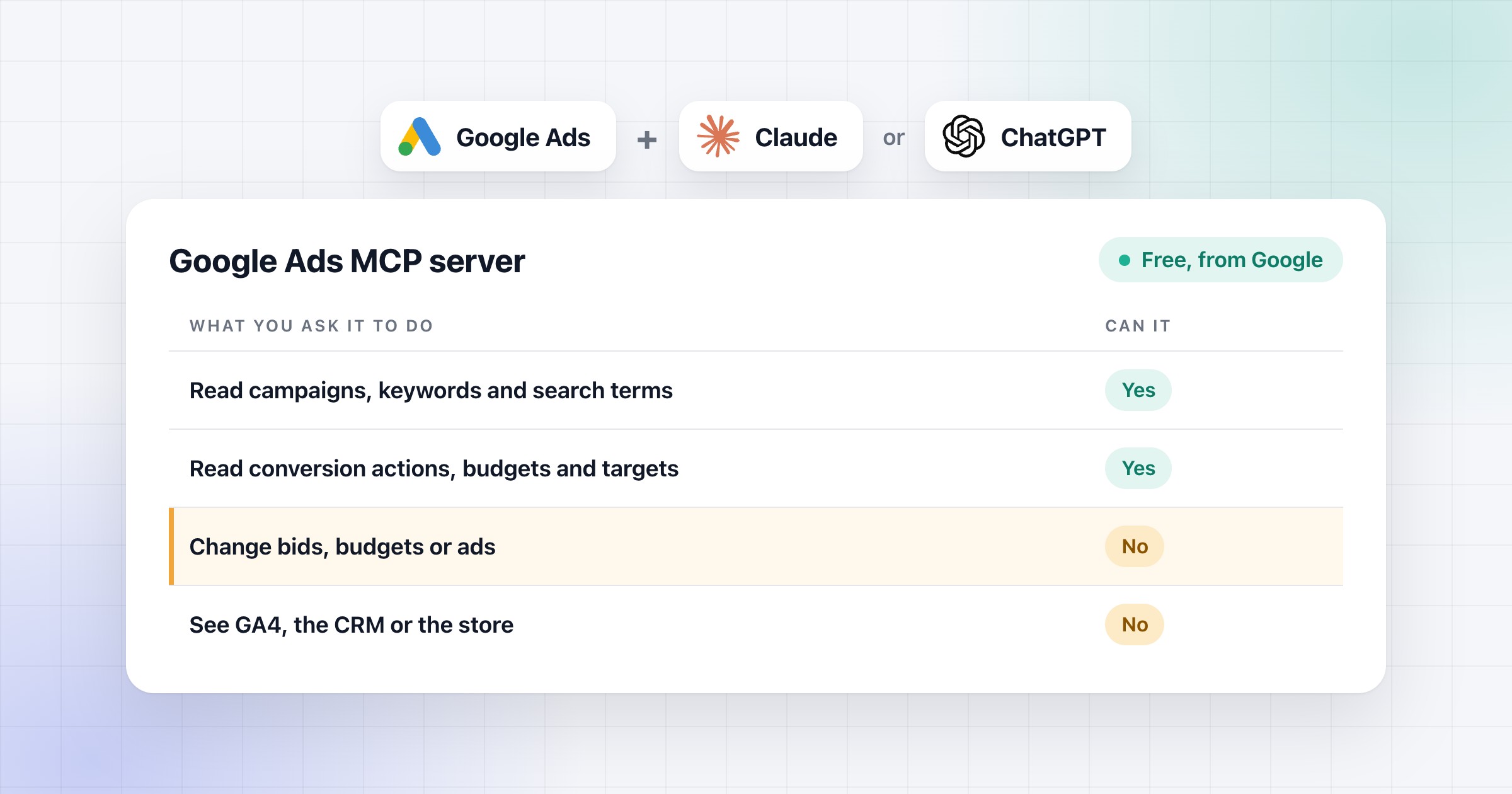
- Reads go through Google's open-source Google Ads MCP server, the one from the test in step 7. Google says it "cannot modify bids, pause campaigns, or create new assets".
- Changes go through a step we add, because the server can't make them. Claude tests each change with Google before it asks, and makes it only after your yes. I walk through that step in how PPC agencies use AI agents.
It's the same step we use when we manage Google Ads ourselves. As I read the rule, both are what it leaves alone. The reads are open source on the agency's access, and the changes are the agency's own automation.
Where a client's money goes stays your call. Claude can suggest a new budget, for example, but it changes the budget only after you say yes.
What an agency does with this access every morning, and how a change gets approved, is in how PPC agencies use AI agents.